Getting started
Your first film in about three minutes, in the web app. A free account starts with 120 credits — three films — and a website’s free allowance is three films across all free accounts.
- 1. Paste a link
- 2. Choose the shape and the look
- 3. Watch it render, then read it
- 4. Edit without starting over
- 5. Pages behind a login
- Plans and credits
1. Paste a link
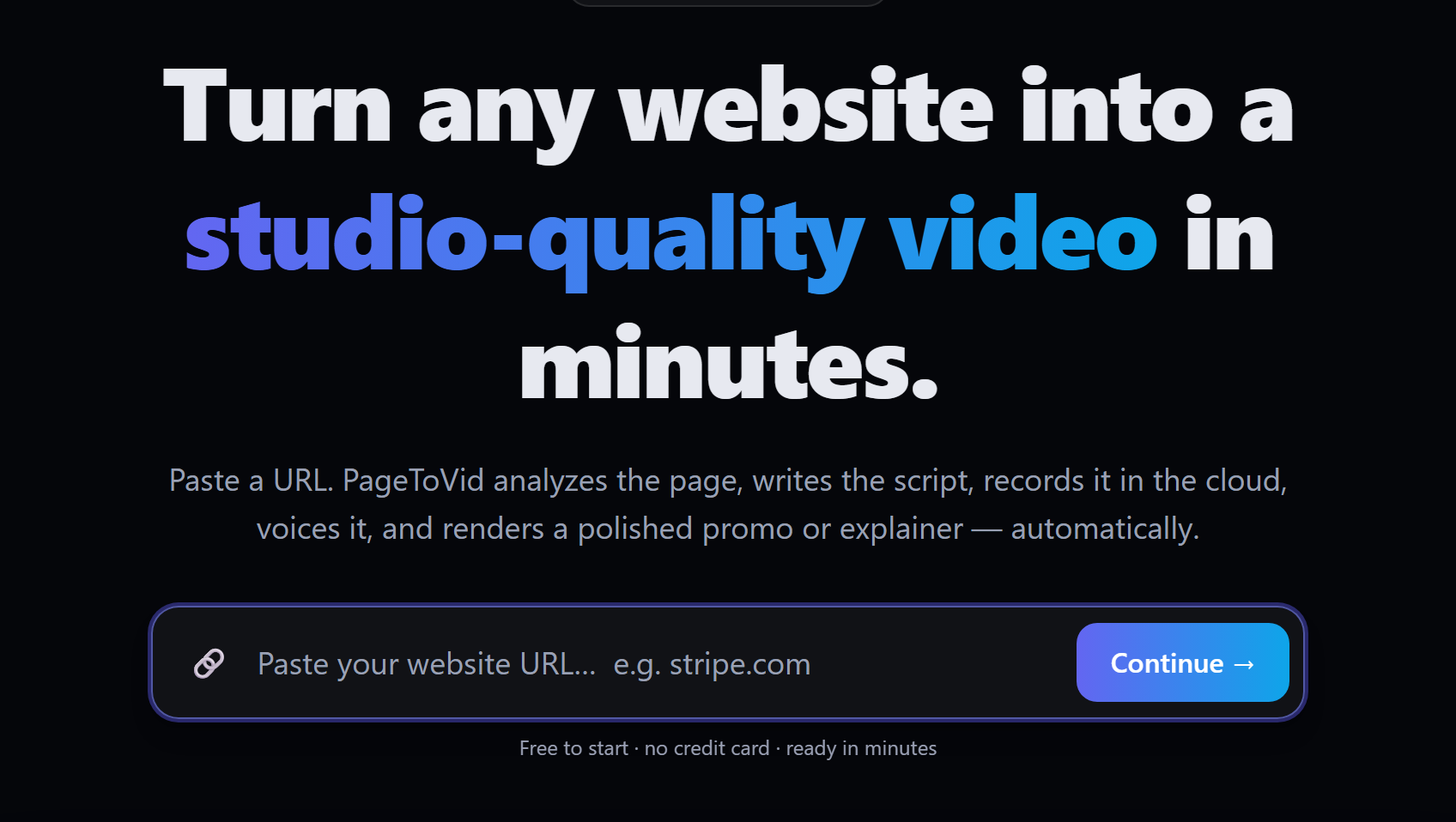
Open pagetovid.com, paste the address of any public page and press Continue. PageToVid opens the page in a real browser, reads it, and writes a storyboard: one idea per scene, each either filmed on the site or drawn as a motion graphic.
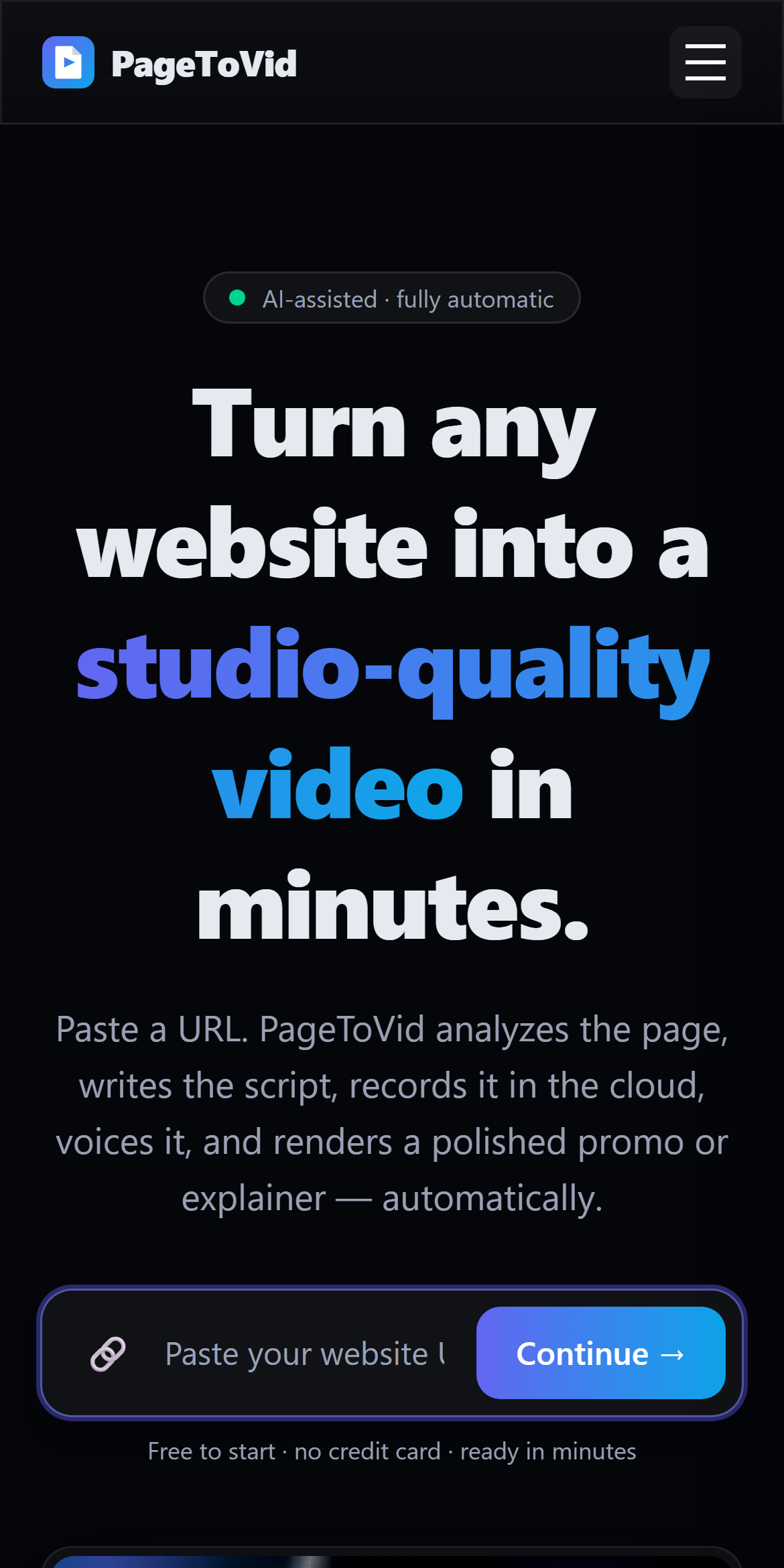
It works the same way on a phone:
Point it at the page that shows the product — a listing, a search box, a pricing table — rather than a marketing hero. A film of a hero section is a film of a headline.
2. Choose the shape and the look
Pick the format before you start, because it changes what is filmed:
| Aspect | Films | Use it for |
|---|---|---|
| 16:9 | the site’s desktop layout | YouTube, websites, presentations |
| 9:16 | the site’s own mobile layout, in a phone viewport | Reels, Shorts, TikTok |
| 1:1 | the desktop layout, square | social feeds |
A look sets the captions, the cutting rhythm, the sound cues and the motion register together: clean, bold, editorial, playful or tech. Every setting it implies can be changed on its own later in the editor’s Style panel: caption style and animation, colour grade, sound level, the cursor, the callout drawn over a click, what a click does to the picture, and the closing card.
3. Watch it render, then read it
Rendering takes a few minutes. When it finishes, the project page plays the film, lists any warnings in plain sentences, and shows the storyboard scene by scene. A film can finish and still not be whole — a generated visual that failed, a scene held for less time than its words — so read the warnings before you publish.
Every film gets a public page with a player, a share bar, an embed code and an MP4 download, at https://pagetovid.com/watch/<title>-<id>.
4. Edit without starting over
In the editor you can rewrite what a scene says, change how it is drawn, re-point the camera at a specific element of the page, reorder, trim, and change the voice or the music. The live preview updates as you type; Render makes the new film from the edited storyboard for 40 credits.
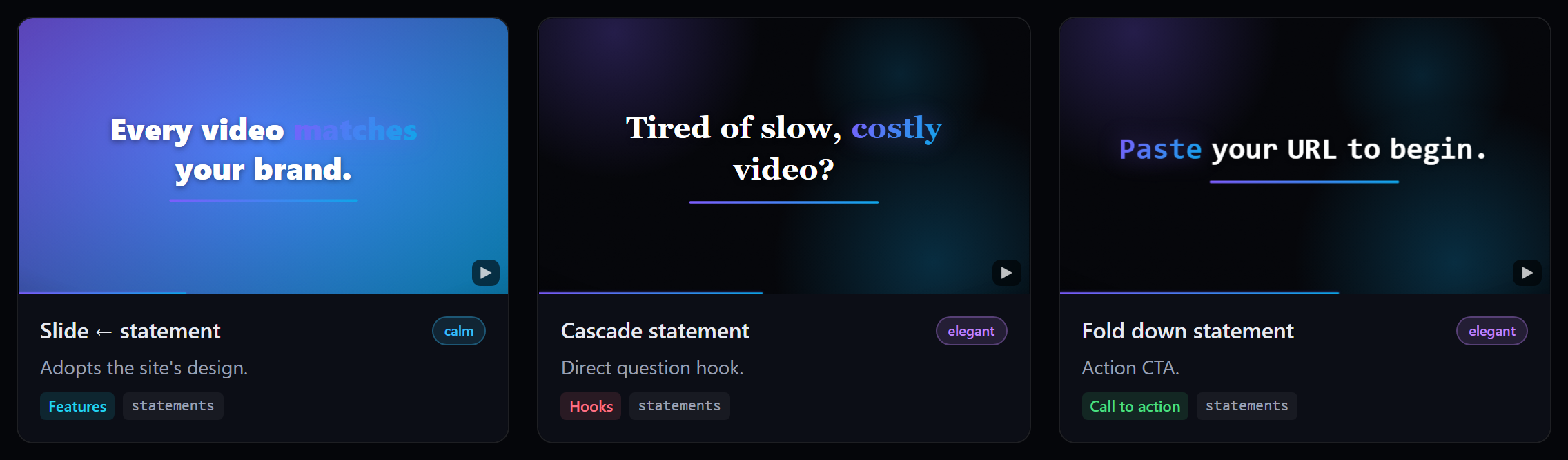
The scenes can be drawn as any of the animation templates, each previewed live in the catalogue:
5. Pages behind a login
Dashboards and apps behind a sign-in are filmed through the browser extension or the VS Code extension: you sign in yourself, the extension registers a capture session for that one site, and it expires within three days. No password ever reaches PageToVid.
Plans and credits
A rendered film costs 40 credits. On paid plans an AI still costs 40 credits and the house AI clip 311; a clip from a model you name is priced from what it costs — see Credits & pricing for the full table and worked examples. A render that fails is refunded in full, AI visuals included.
| Plan | Monthly | Billed yearly | Credits a month | Films a month | For |
|---|---|---|---|---|---|
| Free | $0 | — | 120 once, at sign-up | 3 | trying it, no card needed |
| Starter | $19 | $190 | 1,000 | 25 | solo creators and founders |
| Pro | $49 | $490 | 3,000 | 75 | marketers and small teams |
| Scale | $99 | $990 | 8,000 | 200 | growing teams and high volume |
| Business | $299 | $2,990 | 30,000 | 750 | brands producing every week |
| Agency | $999 | $9,990 | 110,000 | 2,750 | agencies running many brands |
Beyond that, Enterprise starts at $2,500 a month with custom volume, invoicing and a named contact: write to hello@pagetovid.com.
One-off credit packs, which never expire: 40 credits $3.90 · 400 credits $29 · 2,000 credits $119 · 8,000 credits $399. Current prices and features: pagetovid.com/pricing.